
Have you ever logged into your VPS server and wondered, “Is this secure enough?”
If you’re running a Linux VPS, especially for a mail server on VPS or business apps, security should be one of your top priorities.
One simple but powerful step you can take is changing the SSH port.
Don’t worry — you don’t need to be a server expert. We’ll walk through this together, step by step.
By the end of this guide, you’ll feel confident saying:
“Yes, I can manage my own virtual private server.”
What Is SSH and Why Does the Port Matter?
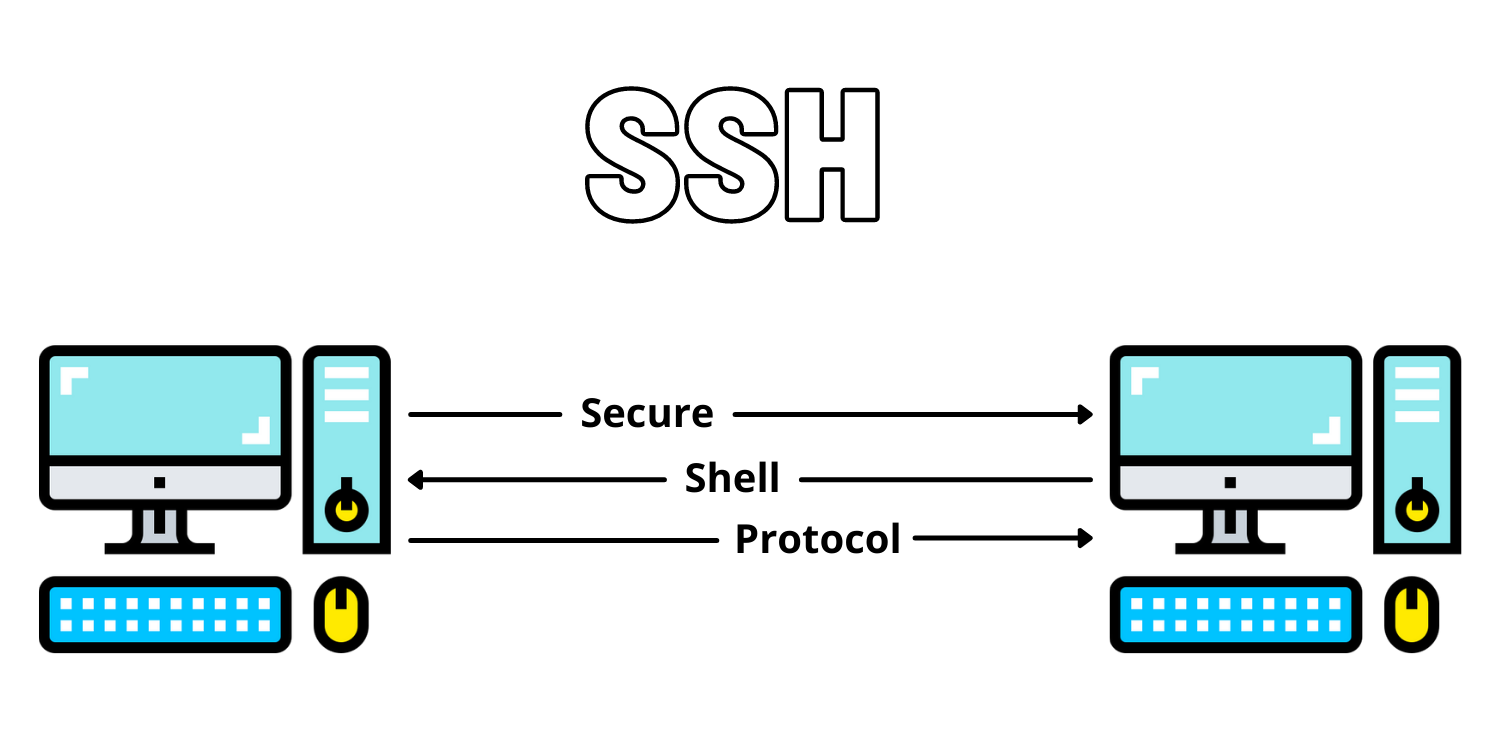
SSH (Secure Shell) is how you securely connect to your virtual private server.
By default, SSH uses port 22.
Here’s the problem:
Hackers already know this.
Automated bots constantly scan VPS hosting environments looking for servers that still use the default port. Changing it doesn’t make your server unbreakable — but it greatly reduces unwanted login attempts.
Think of it like changing your front door number instead of leaving it as “1”.
Why Businesses Use a VPS Server for Email and Applications
Many businesses choose a VPS for business email instead of shared hosting because it offers:
- Full control with root access
- Better privacy for sensitive emails
- More stable performance
- Custom security settings
If you’re running a self-hosted email server, an SMTP mail server, or internal business tools, securing SSH is essential.
This is one reason professionals prefer secure VPS hosting over basic hosting plans.
Benefits of Changing the SSH Port on a Linux VPS
Changing the SSH port is a VPS security best practice, especially for:
- Ubuntu VPS users
- Developers and IT admins
- Businesses running email servers
- Privacy-focused teams
Key benefits include:
- Fewer brute-force attacks
- Cleaner server logs
- Reduced exposure to bots
- Better protection for your business VPS hosting
It’s a small change with a big impact.
Before You Start (Important Safety Tips)
Before changing anything, take a moment to prepare.
Do this first:
- Make sure you have root access VPS
- Choose a new port number (for example: 2222 or 5022)
- Avoid common ports like 21, 25, or 80
- Keep your current SSH session open until testing is done
This helps prevent getting locked out of your cloud VPS.
Step-by-Step: How to Change the SSH Port on Ubuntu VPS
We’ll keep this simple and beginner-friendly.
Step 1: Connect to Your VPS Server
Use SSH as you normally do:
ssh root@your-server-ip
Step 2: Open the SSH Configuration File
Run this command:
nano /etc/ssh/sshd_config
This file controls how SSH works on your Linux VPS.
Step 3: Find the SSH Port Setting
Look for this line:
#Port 22
Remove the # and change the port:
Port 2222
You can use any unused port number.
Step 4: Save and Exit
- Press CTRL + O → Enter
- Press CTRL + X
Step 5: Restart the SSH Service
Apply the changes:
systemctl restart ssh
Step 6: Test the New SSH Port
Open a new terminal window and test:
ssh -p 2222 root@your-server-ip
If it works, you’re good to go 🎉
Only then should you close the old session.
Don’t Forget the Firewall (Very Important)
If your VPS server has a firewall enabled, you must allow the new port.
Example for UFW:
ufw allow 2222/tcp
ufw reload
This step is critical for reliable VPS hosting access.
Real-Life Use Cases
✔ Business Email Servers
Companies running a VPS for email server need stronger security to protect inboxes and client data.
✔ Internal Teams
Developers and remote teams use SSH daily. Changing the port keeps access clean and controlled.
✔ Privacy-Focused Users
If you manage your own Ubuntu server setup, this is one of the first hardening steps professionals take.
Common Beginner Questions